Showing posts with label Internet. Show all posts

Sunday, March 15, 2009

CHANGE ADDRESSBAR SEARCH IN MOZILLA

If you enter text into the address bar that is not a valid Internet address (URL), Firefox will try to direct you to the location you intended(by search the key word on the desires search engine).
Let me explain it in clear,
Turning off and on the internet keyword searches:-
You can control whether the Internet Keywords search is active by editing your Firefox configuration.

1. In the "address bar", type "about:config", and press 'Enter'
The following page with image and text as shown below will appear

* The about:config "This might void your warranty!" warning page may appear. Click I'll be careful, I promise!, to continue to the about:config page.


2. Search for the preference "keyword.enabled".(type "keyword" in the pink box shown as in the below figure to get a list of all the words having keyword in them.)

3. Double-click the keyword.enabled preference to toggle it between true and false.
* false disables Internet Keyword searches.
* true enables Internet Keyword searches.
Keep it as True and do the following,

Changing the keyword service:-
1)You can specify any valid URL to perform the Internet Keywords by modifying the keyword.URL preference in the about:config page.
2) To set the the Internet Keywords service to perform a Yahoo! search, keyword.URL can be set to http://search.yahoo.com/search?p=.If you want to perform a Google search keyword.URL can be set to http://www.google.co.in/search?q= The text you entered into the Location Bar will be searched directly in respective search engine URL's.


Bookmark and Share

Friday, March 13, 2009

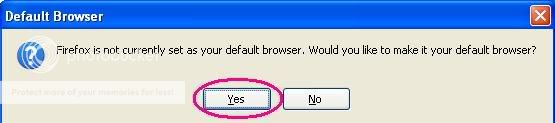
Make mozilla firefox your default browser


Firefox the most popular and powerful of the web-browser's is stable and vital alternative to IE.Many of us like to browse along with MOZILLA and you can extend your web browsing experience by setting Firefox as your default webbrowser.
Following are the steps to set Firefox as your default browser,
1)Firstly,Open your Firefox browser and click on the "tools" button at the top of the browser window.Then go to "options" on the list scrolled2)Go and click on the "advanced" tab and then the "general" sub-tab and there is a “system defaults" section at the bottom of the dialog box and check(put a tick a mark) the “Always check to see if Firefox is the default browser on startup”.you can click the "checknow" button if you want to set it as default browser nowitself.
3)IF u click "checknow" button then firefox will pops with the “Default Browser” dialog asking to us to make sure to set Firefox the default browser. Click the “yes” button and then click then ok of "options" window.


Bookmark and Share

Thursday, March 12, 2009

Transulate your blog to various languages

Now-a-days internet,a global network of interconnected computers,enabling users to share information along multiple channels makes easier to express & communicate then,if u run a blog,it becomes almost a necessity to make sure that ur web-site or blog can be read and understood by people through out the world means u should have ur blog flexible,in many possible languages other than English. Do you have to learn all those languages to make your website available in all those languages? Of course, not.
Google Translate Gadget provides you with a multi-lingual gadget system

Google Translate gadget is a simple web-gadget that you can customize and add to your blog that translates ur articles to many different languages around the world.

Google Translate Gadget supports 35 different languages and it has a merit of n’t taking much page space on ur web page/blog. Google Translate Gadget has a dropdown list of languages you can choose.It takes less screen space and doesn’t need to download 35 different flag images to represent each language.

Follow these steps to add multiple language support tour website or blog using Google Translate Gadget,

1)Go to the Google Translate Gadget page.
On pressing the above link in a newtab,you will be taken to the page as shown below


(click on the image to enlarge)
Click on "add to ur page" button

2)Customize ur gadget style

give the gadget the style you like by adjusting height,width,border color&style of the gadget.
by changing display and gadget settings.
After giving proper dimensions to gadget,check it by clicking on "preview changes" button whether it serves ur needs.

3)Copy the code
After making sure it is fine,click the "get the code" button,where a box appears and gives you the code.copy the code and paste it in ur blog's html.


Bookmark and Share

Saturday, March 7, 2009

How to hide folders in XP

This is a trick to hide good stuff from strangers without softwarez.If u consider something as private u can place them in a folder and hide it .Ok, so here’s a the trick which requires no softwares.you can play with this method of hiding files and folders in Windows XP with ur bro's.
(For safety of hiding place don't place the folder which contains the privatefiles in commonly visiting places like My Documents, instead put it in a location that someone would rarely visit . For eg: place the privatefolder in C:\Program Files. placing a folder there doesn’t hurt anything and not many people go looking through this place as it contains mainly system files).
Procedure
1)Firstly,we need to change the setting so that hidden files and folders are not to be shown. In order to do this,go to drive in which u want to hide the folder .
And after getting into the drive,click on the Tools menu on the top of the window and then select folderoptions
2)After Folderoptions window pop's up,then go to View tab and in the advanced settings section,go toHidden files and folders and choose the radio button Do not show hidden files and files.Click apply and then ok.
3)Then after doing the above process go to ur folder,rightclick the folder u want to hide and select properties and check the hidden box in the general tab of folder properties.


Bookmark and Share

Friday, March 6, 2009

Trick to Lock folders

Trick to lock-folder

Generally, we use softwarez to lock folders.This cool trick makes u aware of secret which requires no softwares and do the same.The trick which i am going to share u turns folder to control panel. so if anyone dares to open it , the control panel window is poped and ur data will remain hidden. Here are the sequence of steps to be followed.

1).Suppose that u want to lock the folder hai in d: which has the path D:\hai.In the same drive open a notepad(text-file) and paste in it,
ren hai hai.{21EC2020-3AEA-1069-A2DD-08002B30309D}
2) Save this file with the “.bat” extension, this file should be kept in the same drive in which the folder exists and it is used to lock the folder.so give a suitable name "loc.bat"(you can give any name but with ".bat" extension-without quotes) by saving it.
3)Now open a new notepad and type the following ren hai.{21EC2020-3AEA-1069-A2DD-08002B30309D} hai
4)This file is used to unlock the folder, so give a name for it as “unloc.bat” . (You can use any other name but use the ".bat" extension ).

(click on the image to enlarge).
5)Double click the “loc.bat” to lock the folder and then the folder turns its icon to that of control panel.

and anybody who opens it find control panel contents.

6)Double Click ”unloc.bat” and u will get ur original folder


Note:-Both the files should be in the directory in which the folder exists.For further security u can save both the files anywhere else and copy them only when u need to be locked or unlocked.

Bookmark and Share

Tuesday, March 3, 2009

Boost your PC performance ( by increase RAM virtually)

Boost-up your pc speed by increasing virtual memory

First of all make ourselves aware of virtual memory??
virtual memory:-Virtual Memory is freespace on your hard-drive which your computer uses as a backup in order to deal with data overflow, when ur system is running low(low speed) on RAM or when RAM memory is not enough to run a particular task .Virtual memory, also known as a page file or swap file, is a file on your harddrive (C:\pagefile.sys by default) that Windows and applications use in addition to physical memory (RAM) when needed.
which means the some part of the secondarymemory(hard-drive) is used as primary memory for serving the program execution purpose when RAM is not sufficient.This free-space used is called virtual memory.

General idea of how it works:- Virtual Memory on ur PC is like having a reserved-fuel tank on ur truck. When u are running at full throttle and ur pc's RAM is all used up, ur PC starts throwing inactive program applications into the emptyspace of your hard-drive(virtual menory), restoring them to the RAM when that program need occurs. Virtual memory is way to trick programs as there is still enough memory-space to go around and keeps the programs running, while in reality you computer is merely doing a complicated juggling act, shifting used and unused data between its actual RAM and its Page-File.

How to increase virtual memory:
- Increasing the speed of ur virtualmemory is easy and requires no software downloads.Follow the below procedure
1)First go to ur Control Panel
2)
then go to the Performance and Maintenance Tab (switch to Category view)

3) click on the System Icon.
4)When the System Properties window opens, go to Advanced Tab, then click on Settings button in the "Performance" section which will open a Performance Options window. Then click on Advanced Tab Move down to the “virtual memory” section and click on the Change.
5)Keep the initial size same as recommended and maximum size the double of it then restart your system.
It will improve speed of windows and you can play some games which require higher RAM.
Other method to go to virtual memory changings:-

1)To set the virtual memory page file, first Right Click the My Computer icon

2)Select PROPERTIES. This opens the System Properties box. Select the Advanced Tab and then click the Settings button in "performance" section.

3)Click on the Advanced tab. Go to the "Virtual Memory" section and click Change. This opens the Virtual Memory window.


The general rule is to make the amount of virtual memory available about one and a half times bigger than the amount of RAM you are using. So, for instance, if you have 1000 MBs of RAM, make your Virtual Memory size 1500 MBs. Another good trick to know is to make minimum and maximum paging file size the same value(ie to keep both at max values) . This will keep your PC from constantly changing your Page file Size and keep its performance more stable.
RAM & virtual memory are two different things. Virtual memory allows you to use a portion of your hard drive.Your hard drive is up to 100 times slower than RAM, so virtual memory is much slower than RAM.When you upgrade your RAM, you can reduce or eliminate the use of virtual memory. Upgrading RAM makes memory available to complete tasks previously handled by virtual memory.If u have lowspeed RAM, go to http://www.crucial.com and have it scan your system. It will tell you how much RAM you have and if you can upgrade.

Bookmark and Share

8051 microcontroller


8051 micro controller architecture programming and applications by kenneth ayala


Bookmark and Share

Monday, March 2, 2009

CHANGE COMMAND PROMPT COLOR

This is a cool trick to share with you guys who are not aware of it even

1.open your command prompt from start menu(start->run->type"cmd")
2.Now type "color xy" where X,Y can be any of the value ranging from 0-9 and A-F.

For example:-1) If you type "color 16" then the colour shown in following pic is visible(click
on pic to enlarge)


2) lly color 34


4.enjoyeddd????

NOTE:
1.If you need further assistance then type color help or help color (with color and help words seperated by a single space) in the cmd window.

2.Color attributes are specified by TWO hex digits -- the first corresponds to the background; the second the foreground. Each digit can be any of the following values ranging from 0-9 and A-F(10-15 in decimal)
3.If you type only a single digit like (color 1,color 7) it takes the default background-color as black and applies the digit-color to the foreground(text)
(or)
1)simply open your command prompt,Right-click on the top blue bar of command prompt window ,


2)Go to properties
3)Click to the colors tab and make your settings.
Bookmark and Share

HIDE FOLDERS WITHOUT SOFTWARE(with cmd prompt)

Generally we would see many instances of private folders hidden by softwares
but in this post i can reveal the secret of folderhiding with out softwarez.
following the sequence of steps below

  1. create a Folder in C drive rename it as "XXX" without quotes.
  2. Now open Command Prompt in the Start Menu.
  3. Type "attrib +s +h C:\XXX" without quotes and then press enter.
  4. This command will Make your folder invisble and it can't be seen even in searches ,hidden files and folders list.
  5. To regain it type "attrib -s -h C:\abc"
  6. You can lock any other folder(in other drives also) by just replacing the address of location of folder or file in place of C:\XXX .


Bookmark and Share

Saturday, February 28, 2009

Add Bandwidth to your XP(Increase internet speed)

what is bandwidth??Bandwidth refers to the capacity of a communications line/channel to transmit/receive information and is measured in bits, bytes, kilobytes, megabytes and gigabytes. All the computers in the world are connected by cables.ISP(internet service provider) is a organisation which has very high-speed and expensive connection to the internet.This organisation supplies internet connections(which are comparitevely very very low speed than ISP) to lakhs of users like us and makes money. when you are interested in downloading a file,the request gets to your ISP through your modem and the file travels very quickly to ISP whereever it is on earth.This file is send to us through different cables of variable capacities.THe time taken to download a file is hided on the wires connected to your system to modem and modem to ISP .

Dial-up Internet accounts, which uses standard telephone lines(which are narrow space for flow of data) to connect to an ISP, have a very narrow bandwidth (about 50 Kbps or 50,000 bits per second) it takes a long time to download things .A Broadband internet account(they are have broader space to flow data) can move data at anywhere from 128 Kbps to 2,000 Kbps or more so they are faster than that of dial-up ones.

However we should get the maximum flow of data through respective channels .But
Microsoft Windows XP makes an optimized use of bandwidth by default and reserves 20% of your bandwidth for its own purposes,unless an application specifically request priority bandwidth through the Qos APi’s it does not release this 20% .The default system behavior is that 100% bandwidth is available, however, if there is a running application that is implied to the operating system and it needs to send high priority/real time data, then as long as it has the socket open, Windows XP will restrict “best effort” traffic to 80% of the bandwidth so that high priority traffic can be accommodated.we can change this 80% to 100% by requesting the operating system for QoS support using the QoS application programming interfaces (APIs) in Windows and this only applies if a specific app is requesting QoS.

If like to change the bandwidth is reserved for QoS (default is 20% of the total bandwidth),
then get on to the following steps:

1. Login to ur "
Administrator" account (not just any account with admin privileges).
2. GO to START>Run and type: gpedit.msc
3. Navigate to Local Computer Policy >computer configuration> Administrative Templates> Network > QOS Packet Scheduler
4.Then double-click the limit reservable bandwidth setting.
5. On the setting tab, check the enabled setting.
6. Where it says "Bandwidth limit %", change it to read 0 from 20 ( or percentage you want to reserve for high priority QoS data)
7.THEN click apply and then OK Under START > My Computer > My Network Connections > View Network Connections, right-click on your connection -> Properties (where it lists your protocols), make sure QOS Packet Scheduler is enabled.

(click on the picture to enlarge)
You need to reboot for changes to be more effective.
Note:
This tweak applies only to The Professional version of Windows XP

Bookmark and Share

Monday, February 23, 2009

Convert text to speech

Many of us prefer to hear than to read all the articles in the vast going pages.some are even irritated.AliveText to Speech converterallows you to convert Text or Text files to MP3, WAV, WMA.Voice software to convert text to speech, would be a great boon for any blog or website or reader.Bloggers can increase their traffic by giving a chance by giving the option to listen to ur blogspot Fortunately we have the best of them here....


1)ispeech:-iSpeech is a free web service that allows you to convert your text to voice and leaves you the option to preview/download it.
We can even put it on our website so that whenever somebody comes on our website for a post, they have an option of widget ,which will automatically start reading the post for the visitor when he clicks it
For test:click here
To get the widget :here(bloggers)
here(wordpress)

you can also see the place of the widget located in my blog once you click it ,you can listen the text written on that post(click on image to enlarge)
2)vozme
Voz Me is another text to speech free online utility. VozMe allows the you to save the text . It also gives you an multiple language option and you can also shift between male and female voices.To save it as an MP3 file all you have to do is enter text in the content box and click "create mp3 button "(below text box). It will create mp3 of the text and give you an option to listen or download it.
3)Blogbard
This is explosive,it just asks you to submit a blog url and reads the post for you and if you tired of reading RSS feeds content then Blog Bard is what you need. You can listen to your favorite blogs on your iPod and your iPhone or listen to blogs in your Google Reader, or Bloglines account, by logging in through this website.With it, you can turn any feed/news to a personalized radio. You can even integrate it with your blog using a widget.


4)yakitoma

Like the web services above,it allows you to convert text files into wav/mp3 files Using this web service you can listen to workdocuments, homework, PowerPointpresentations,emails,RSS feeds and blogs.It can also have an multilingual option.
5)SpokenText.net is a free text to speech converter, it allows you to record in many languages (English, French, Spanish or German) and converts them to speech automatically.It is a Firefox addon that allows you to covert your text to voice Word, Txt files, Powerpoint files, Rss Feed, emails and websites. Spoken Text is a great service provided,if your have little time to read and can surf the as many sites as you can catching up with your favorite sites.


Bookmark and Share

Monday, February 16, 2009

Mozilla Firefox Shortctus (72 Shortcuts)


Navigating between Websites with Firefox
1 alt+home Go to homepage (typically people's favorite search engine)
2 alt+arrow left or back One page backwards
3 alt+arrow right One page forward
4 alt+d or ctrl+l Jump to address bar and selects all text in it
5 ctrl+enter Complete .com address in the address bar. Type in for example "firefox" and press ctrl+enter
6 shift+enter Complete .net address. Type in for example "firefox" and press shift+enter
7 ctrl+shift+enter Complete .org address. Type in for example "firefox" and press ctrl+shift+enter
8 ctrl+b or ctrl+i Show bookmarks. After that you can press tab and use the arrow keys to navigate between bookmarked pages. arrow left and arrow right will expand/shrink bookmark folders marked with the little '+' or '-' signs. Pressing this keyboard shortcut a second time closes the Bookmark Sidebar
9 ctrl+d Add bookmark
10 ctrl+shift+d Bookmark all tabs
11 alt+b+a-z Jumps to any bookmarked website in your main bookmark folder which begins with the letter you specify. Example: I have one bookmark which I named "LEO" (which is my favorite German-English Online Dictionary dict.leo.org). I press alt+b+l and I am on the LEO website within a second. If you have more than one bookmark with the same letter, it jumps to the first entry and you have to press enter to after alt+b+letter to get to the website. It will take you a minute to setup and organize your bookmarks but save you hours in the long run.
12 ctrl+h Show history. Then you can press tab twice and use the ARROW KEYS to navigate between visited sites. Pressing ctrl+H again closes the History Sidebar

Working with the Firefox Browser Tabs
13 ctrl+t
ctrl+shift+t
Open new tab in the same Window
Opens the lastly closed tab
14 ctrl+tab or ctrl+page down Jump to next tab
15 ctrl+shift+tab or ctrl+page down Jump to previous tab
16 ctrl+1 - ctrl+9 Jump to tab 1 - 9
17 ctrl+w or ctrl+q Close Browser Tab

Navigating within websites with Mozilla Firefox
18 arrow down Down one line. The ideal way to scroll through websites
19 arrow up Up one line. The ideal way to scroll through websites
20 tab Jump to next link when cursor is positioned in browser window. Other than that, jumps between address-bar and browser-tabs
21 shift+tab Jump to previous link when cursor is positioned in browser window. Other than that, jumps between address-bar and browser-tabs
22 enter Open selected link
23 shift+enter Open a selected link in new window
24 enter Open selected link
25 shift+enter Open a selected link in new window
26 alt+enter Download a selected link (replaces right mouse-button, "save as" and "return"
27 ctrl+enter Open a selected link in a (new background) tab
28 ctrl+- Decrease text size
29 ctrl++ Increase text size
30 ctrl+0 Default text size
31 f5 or ctrl+r Reload Page
32 ctrl+f5 Reload Page with Cache override
33 escape Stop loading page. Can also be sued to close search window if it is open
34 f6 Go to next frame (or switches between address bar and browser window if page has no frames)
35 shift+f6 Go to previous frame
36 F7 Turn caret mode on/off (navigation with keyboard)
37 shift+f10 Open Context Menu. If you are for example on a link within a website, you could press shift+F10 and then C to copy link location

Working with Forms in Mozilla Firefox
38 tab Jumps to next Form Element
39 shift+tab Jumps to previous Form Element. If an entry in the previous field is already made, the complete entry is marked. If you want to enter something new, simply start to type and the new entry replaces the old form entry. If you want to keep the old entry, Simply press the home or END keyboard shortcut to go to the beginning end of the entry.
40 space Activates and/or deactivates Radio Buttons and Check boxes
41 alt+arrow down Select Select from a drop down menu. Then use arrow up and arrow down plus return to make your choice
42 ctrl+x Cut (when working in forms)
43 ctrl+v Paste selected text when working with forms

Find text and links in websites
44 ctrl+f or ' Open search window and find key phrase in page (as you type)
45 / Open search window and find link in page (as you type)
46 f3 or ctrl+g Find next
47 escape Close search window
48 shift+f3 Find previous

Working with the Firefox Browser Window
49 ctrl+n or alt+f+n Opens new Browser Window
50 ctrl+shift+w or alt+f4 Close browser window
51 alt+space Opens the Title Bar Menu (applicable all Windows Application)
52 alt+space+enter Restores Firefox Window to smaller size if window is spreading on full screen (replaces the "restore button" on top right corner of title bar)
53 alt+space+x Restores Firefox Window to maximum size if window is not maximized (replaces the "maximize button" on top right corner of title bar)
54 alt+space+n Minimizes Firefox Window to (replaces the "minimize button" on top right corner of title bar)

Accessing and working with the Firefox Menu Bar
55 alt or f10 Jumps to the menu bar. From here you can use arrow left, arrow right, arrow up and arrow down plus enter to navigate and activate between the menu items on top of the browser window. Usually the same in all Windows Application.
56 alt+f Opens File Menu
57 alt+e Opens Edit Menu
58 alt+v Opens View Menu
59 alt+g Opens Go Menu

Other Firefox Keyboard Shortcuts
60 ctrl+a Select all. Useful, if you want to for example copy text out of websites. I use it often to copy articles in a plain text editor, remove the advertising and print it out.
61 ctrl+c Copy selected text
62 ctrl+p Print
63 alt+f+v Print Preview - File - Print Preview
64 ctrl+o Open file
65 ctrl+u Show page source
66 ctrl+s Save page as
67 f1 Firefox Help
68 f11 Full page view
69 ctrl+j Show Download Window. Pressing ctrl+J again (or alt+F4 closes the window again
70 ctrl+e Jump to search bar (usually located in top right corner)
71 ctrl+k Jump to search bar (usually located in top right corner)
72 ctrl+arrow up Toggle Search Engines when in search field (after ctrl+E got you there)


Bookmark and Share

Saturday, February 14, 2009

THE COMPLETE REFERENCE C++

Description:Author Herb Schildt is the world’s best-selling C++ author with more than 2 million books sold. The most complete coverage of the newly updated ANSI C++ Standard–including updated material on the STL, namespace naming methods, an new classes. An easy-to-follow, three-part organization: I) Description of the root of C++; II) Detailed coverage of C++’s OOP components and classes; III) Effective C++ software application development.
Download:
rapidshare: LINK1
OTHER: LINK2

Bookmark and Share

(Works For IE Only)